Necə işləyir: hissə-hissə
Bütün proqramı bir qayda birləşdirir: pəncərənin vəziyyəti yaddaşda, konfiqurasiya isə fayllarda saxlanılır. Aşağıdakı hər şey bundan irəli gəlir.
Hər şeyin əsasında duran qayda
Pəncərə tabları tutur. Tab blokları tutur. Blok terminal, redaktə olunan fayl, fayllar paneli, veb səhifə, şəkil, PDF, Markdown səhifəsi, diff, sistem monitoru, ayarlar ekranı və ya əlavənin panelidir. Onlar istənilən istiqamətdə iç-içə bölünür, sürüklənir, ölçüsü dəyişdirilir və hər yeni funksiya üçün yeni qaydalar toplusu deyil, bir qaydalar toplusu ilə bağlanır. Hamıya aid olmaq üçün çox böyük olan hər şey vobuda-nın öz kataloqundan əlavədir, indiyədək Design və Director, bir basışla tam quraşdırılır və silinir.
Bu düzülüşlə bağlı heç nə verilənlər bazasında saxlanmır, çünki verilənlər bazası yoxdur. Pəncərənin nə etdiyi yaddaşda, sizin qərarlarınız isə fayllarda yaşayır. Məhz buna görə düymə, klaviatura qısayolu, menyu paneli, Cmd+K və əmr sətri eyni əməliyyatı ada görə çağırır, və məhz buna görə davranışı dəyişmək demək olar ki, həmişə JSON-u redaktə etmək deməkdir.
Məhz buna görə də bu tip iş üçün nəzərdə tutulmuş Mac üçün ən yaxşı terminal emulyatoru, sizin daxilinə baxa biləcəyiniz proqramdır. Əgər ayar mövcuddursa, onu saxlayan sətir bir faylda var. Əgər əməliyyat mövcuddursa, onu çağıra biləcəyiniz bir ad var.
Bir əməliyyata beş yol, və hamısı eyni əməliyyatdır
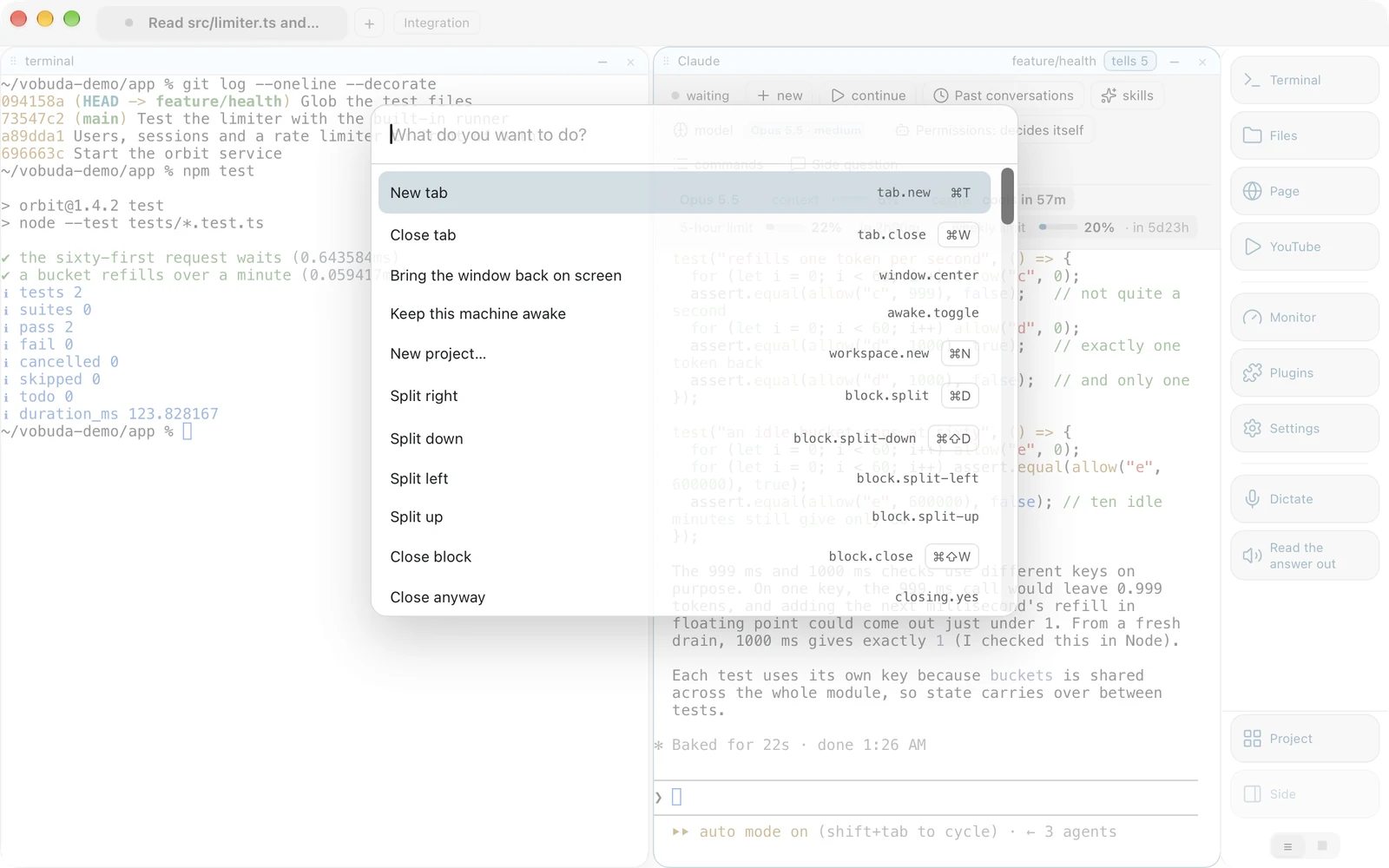
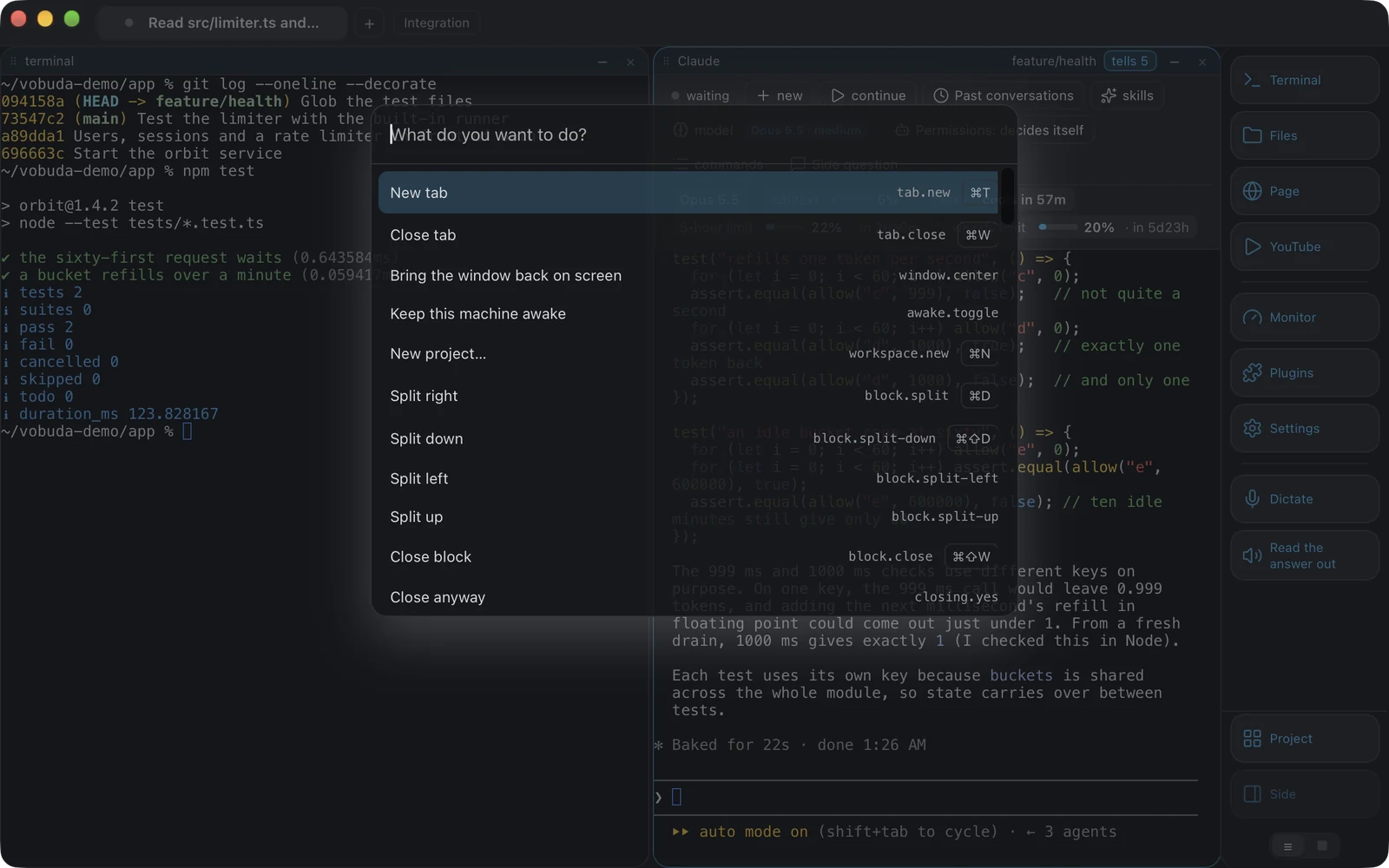
Bu qədər əməl olanda proqramın çox hissəsi praktikada gizlidir. Cmd+K «bunu et» deyil, «nə edə bilər» sualına cavab verən yoldur.
-
Klaviatura qısayollarını əvəz etmir, öyrədir
Hər sətirdə öz qısayolu göstərilir. Eyni əməliyyat üçün siyahıya iki dəfə müraciət edən adam üçüncü dəfəyə qısayolu artıq öyrənmiş olur.
-
Bu, beşinci lüğət deyil
Hər sətir digər dörd yol kimi əməliyyatı ad üzrə işə salır. Bir yoxlama bu siyahının çəkildiyi cədvəli nüvənin klaviaturaya bağlana bilən əməliyyatlar siyahısı ilə hər iki istiqamətdə tutuşdurur: mövcud olub orada təklif olunmayan əməliyyat build-i uğursuz edir.
-
Əmr sətri də eyni dəstdir
vobuda do block.split-down, vobuda button files, vobuda theme catppuccin-mocha, vobuda send, vobuda signal, vobuda state, vobuda log, istənilən vobuda blokunda yazılır,
vobuda mcpisə eyni əmrləri agentə MCP alətləri kimi təklif edir. Skriptlər üçün yan qapı deyil: interfeys testləri bütün proqramı onun vasitəsilə idarə edir, ona görə ona etibar etmək olar və ona görə agent pəncərənizi yenidən düzə bilər, siz isə onun nə etdiyini dəqiq oxuya bilərsiniz.
Bloklar və onların verdiyi təminat
Blok işləyən shell-i ilə birgə tab dəyişir
Bloku başlığından tutub zolaqdakı bir tabın üzərinə sürüyün, o orada yerləşəcək: eyni id, eyni shell, eyni qovluq, işlətdiyi nə idisə yenə də işləməkdə davam edir. Blok tabın üzərindəyken tab aksent rənglə işıqlanır. Bunun üçün də bir əməliyyat var, block.to-tab:2, ona görə bu klaviatura qısayoluna bağlana bilər və siçansız bir yoxlama onu basa bilər.
Ölçülər yadda saxlanılır, və minimal həddi var
Hər blok üçün ayrıca, və heç bir blok istifadə oluna bilməyəcək qədər dar ola bilməz. 200 punktluq panel heç kimin istifadə edə bilməyəcəyi paneldir.
Sizin heç nəyiniz səssiz getmir
İşləyən bir şeyi bağlamaq əvvəlcə adla soruşur, çünki kiminsə işini bir dəfə itirmək bütöv funksiyanın qazandığından çox etibara başa gəlir. Eyni səbəbdən layihə qovluğu hər agent gedişindən əvvəl anlıq şəkildə saxlanır, qaytarmaq üçün bir basış kifayətdir; agentə yapışdırılan açar agent onu görməmiş dayandırılır; işə sala biləcəyiniz hasar isə agentin layihədən kənara yazmasını və silməsini rədd edir.
Sessiyalar susmaya görə qayıdır
Tablar, bloklar və hər blokun işçi qovluğu yenidən başlatmadan sonra qayıdır və bu, susmaya görə aktivdir; «Ümumi» bölməsindəki bir keçid onu söndürür. Başqa maşından gələn sessiya bacardığını açır və blokları səssiz atmaq əvəzinə nəyi aça bilmədiyini deyir.
Ayarlar qovluğu, fayl-fayl
~/.config/vobuda daxilindəki hər şey oxunaqlı JSON-dur və proqram işlədiyi müddətdə izlənilir. Faylı yadda saxlayın, pəncərə yenidən çəkilir.
| Fayl | Nəyi saxlayır |
|---|---|
| settings.json | Tema, görünüş, terminal, shell, pəncərə, siqnallar: on bölmənin hər ayarı |
| themes/*.json | Terminal və pəncərə rəngləri. 25 palitra daxildir, ikisi rəng korluğu üçün hazırlanıb |
| looks/*.json | Pəncərənin forması: künclər, kölgələr, panel rəngləri, şəffaflıq. 29 göndərilir |
| skins/*.json | Monitorun hansı panellərinin və necə çəkiləcəyi |
| buttons.json | Dok paneli: düymələr, ardıcıllıq, tərəf, forma və qeyd olunmağa dəyər bir neçəsi üçün rəng |
| agents.json | Agentin necə tanındığı və ona nələrin təklif olunduğu |
| keys.json | Bütün qısayollar. Doğma macOS menyusu da elə bu fayldan qurulur |
| workspaces/*.json | Layihələr: hər biri öz tabları, qovluğu, teması və doku olan pəncərə |
Daxili temalar ikili faylın içində yaşayır, qovluq isə onları üstələyir, ona görə yenilənmə redaktə etdiyiniz heç nəyi üzərinə yazmadan yeni rənglər gətirir. Bütün qovluq bir arxiv kimi saxlanır və başqa Mac-də bərpa olunur, Mac-də isə nüsxə iCloud Drive-da yaşayır, susmaya görə aktivdir, onu söndürən bir keçidlə.
Fayl ilə tənzimlənən sistem monitoru
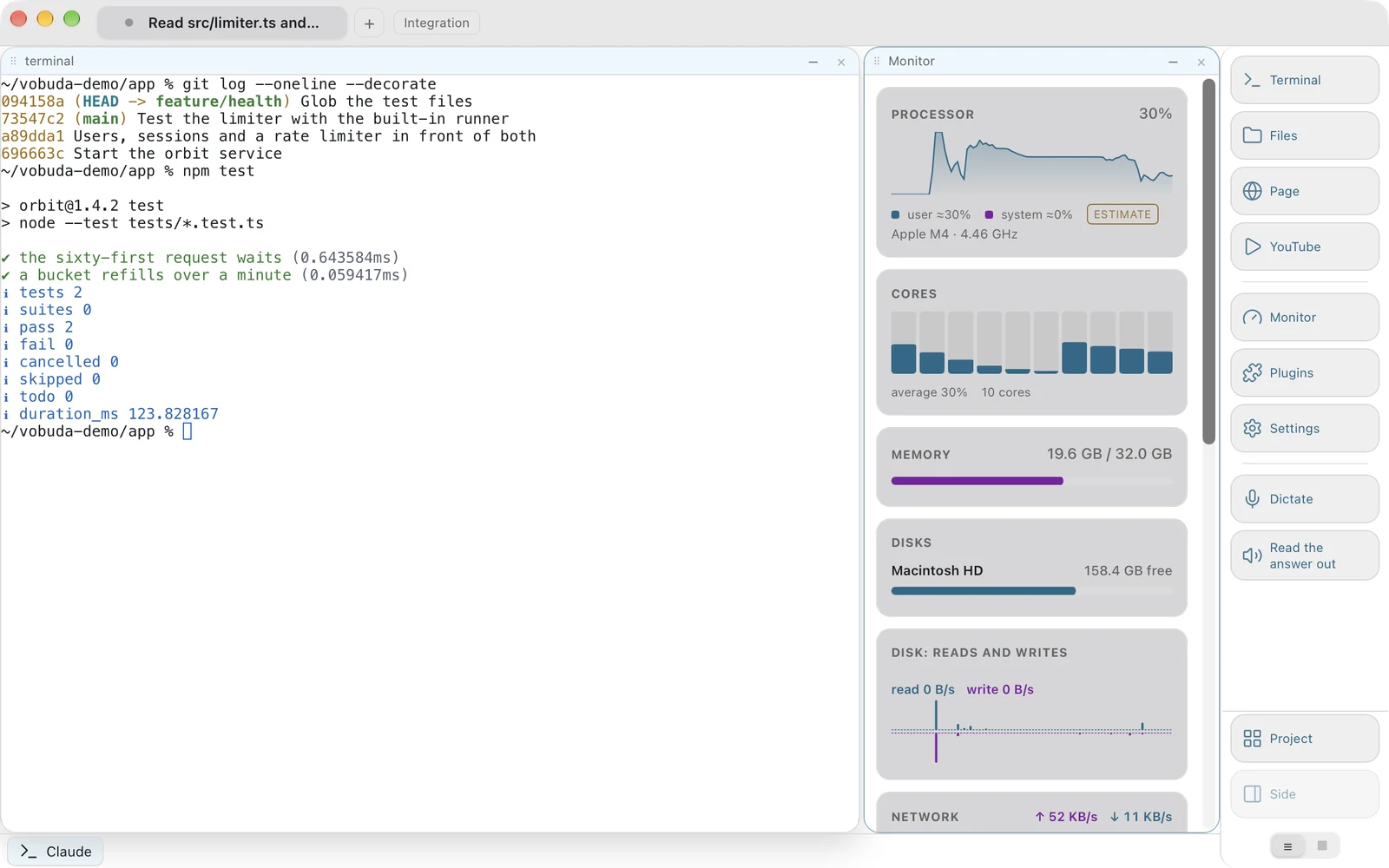
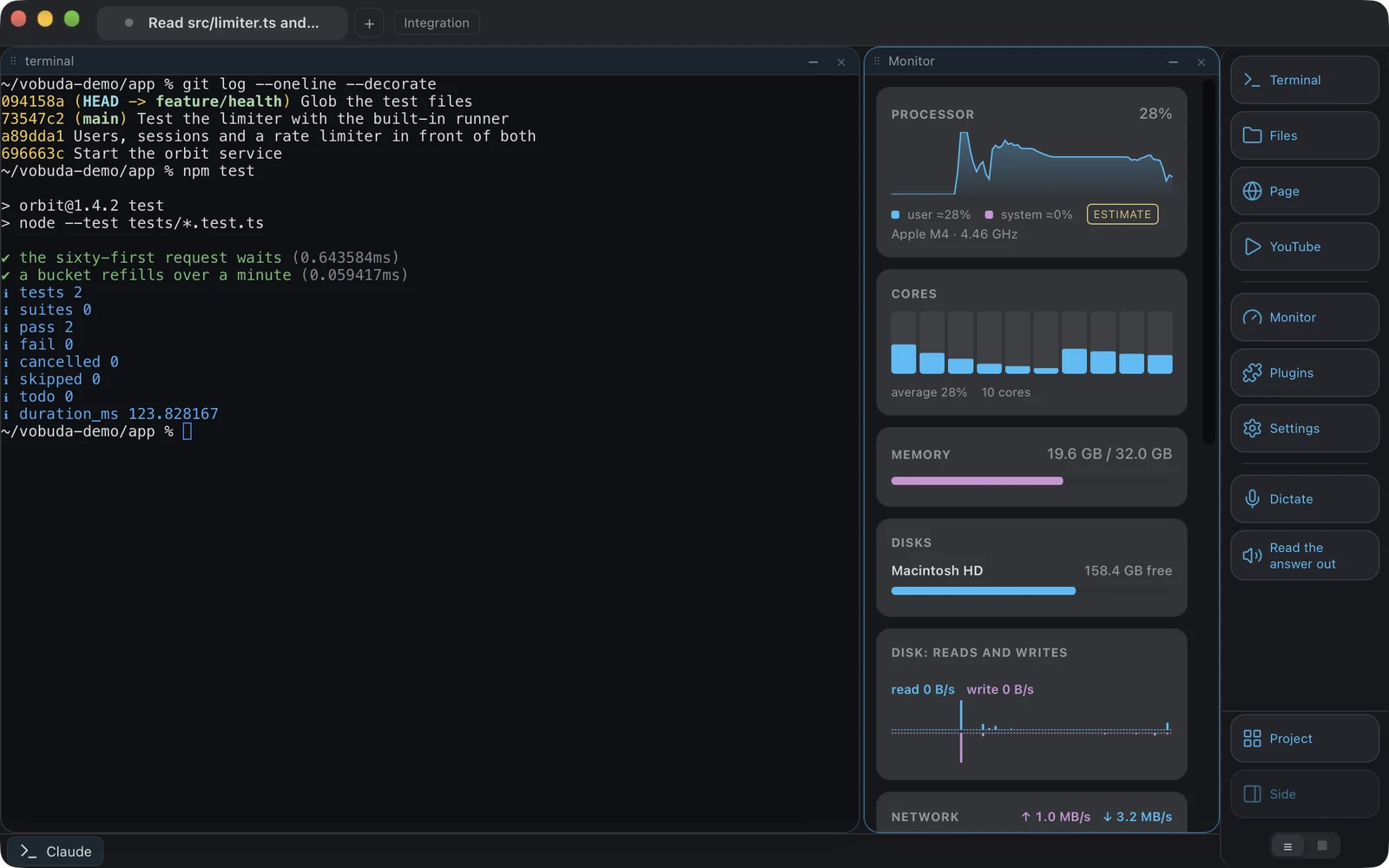
On iki növ panel və onlardan hansını gördüyünüz kiminsə bir dəfə layihələndirdiyi ekran deyil, skindir.
-
Rəqəmlər özləri haqqında dürüstdür
Sistemin ölçmədiyi, yalnız təxmin etdiyi dəyər tilde ilə göstərilir, mövcud olmayan avadanlıq isə sıfır deyil, mövcud olmayan dəyər verir. Ayrıca GPU-su olmayan maşında sıfır faiz göstərən GPU paneli görünmür.
-
Hər iki ünvan, hər birində kopyalama düyməsi ilə
Ünvan paneli əvvəlcə internetin gördüyü ünvanı, onun altında isə bu maşının öz şəbəkəsindəki ünvanı adlandırır. O, yalnız panel ekranda olarkən, təxminən on dəqiqədə bir dəfə, ya da ünvan hələ məlum olmayanda hər otuz saniyədən bir soruşur, sorğu isə maşın haqqında heç nə daşımır.
-
Hər şey kimi, sürükləməklə sıralanır
Monitorun panelləri, dok panelinin düymələri və agent panelinin hissələri eyni hərəkətlə tutulub yerinə qoyulur. Ayarlar sətri sətirdə istənilən yerdən deyil, solundakı tutacaqdan tutulur, ona görə mətn sahəsindən başlayan sürükləmə dəyişmək istədiyiniz sözü seçməyinizə mane olmur.
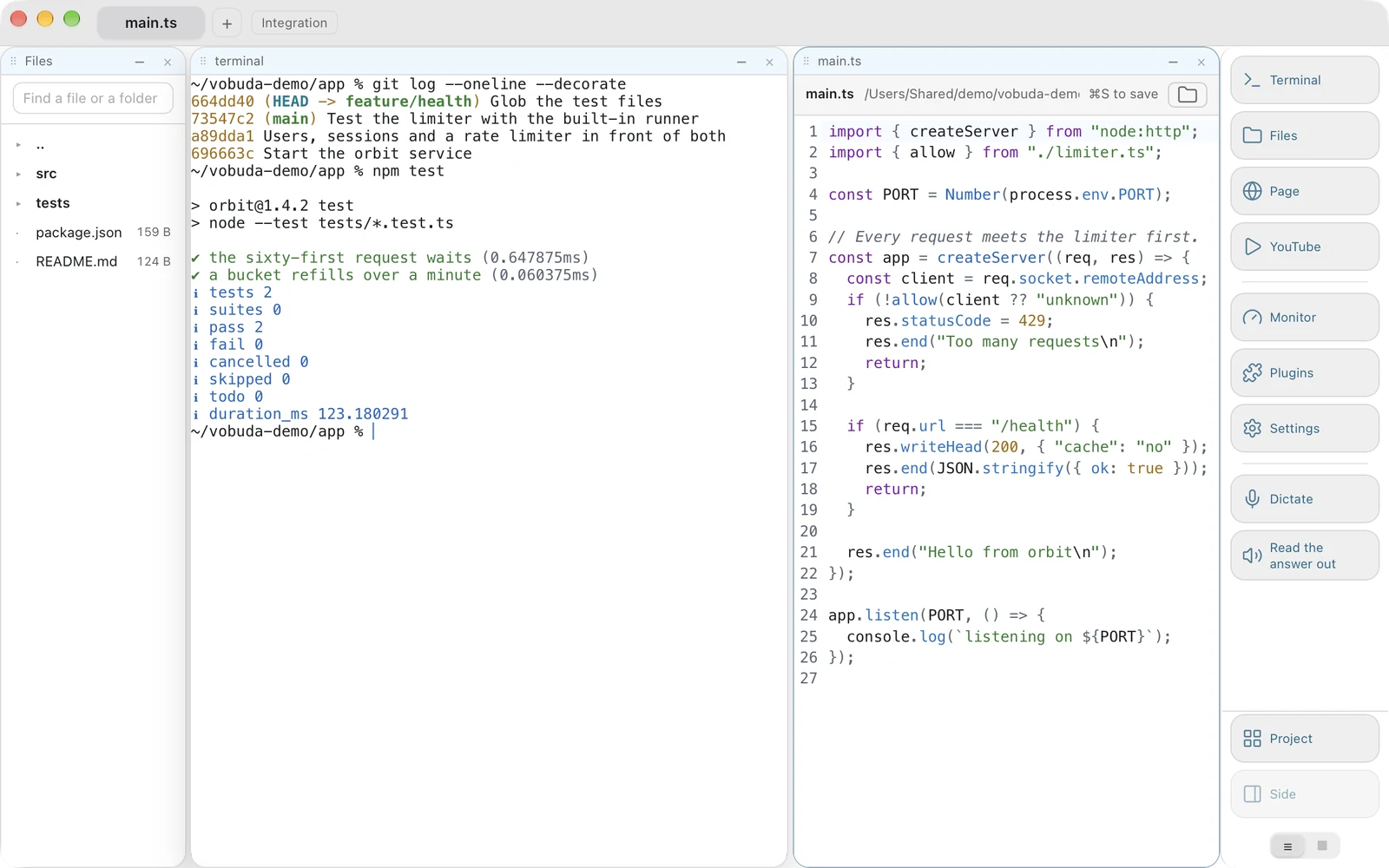
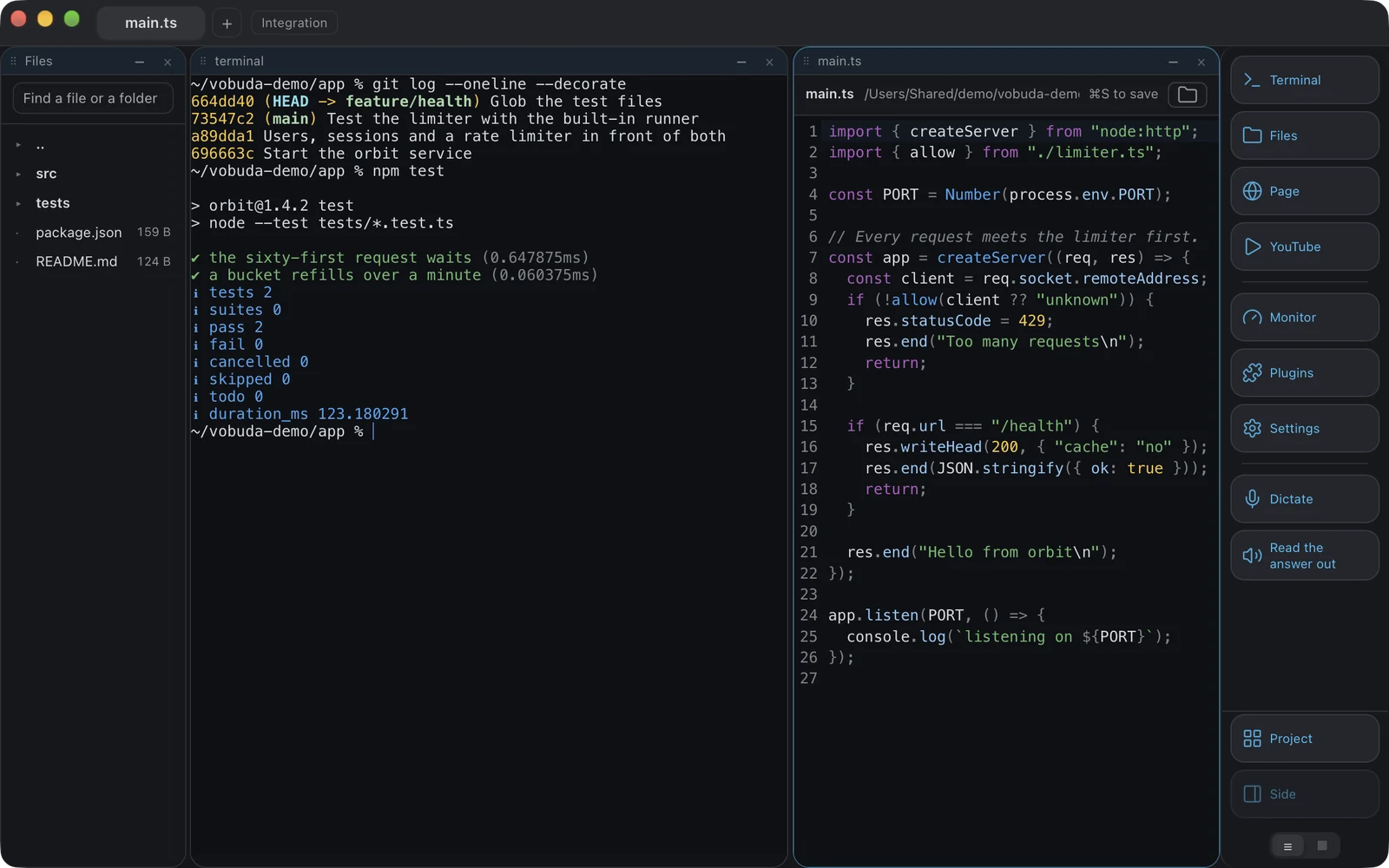
Fayl shell-in yanında açılır
Adətən terminalın sizi başqa yerə göndərdiyi iş: nəticədə bir yol görünür, iki sətri dəyişmək lazımdır, və indiyə qədər bu, redaktora keçib shell-in kontekstini itirərək geri qayıtmaq demək idi.
-
Yadda saxlamaq şüurlu addımdır
Cmd+S basılana qədər heç nə yazılmır. Yazdıqca yazan redaktor qeydlər tətbiqi üçün yaxşı, işləyən shell-in yanında isə pisdir. Bu, sadə bir düymə basışı deyil, əməliyyatdır, bu da ona burada olan hər şey kimi menyu elementi, qısayol və əmr sətri girişi verir.
-
İmtinalar yazmaq qədər önəmlidir
Açıldıqdan sonra diskdə dəyişdirilmiş fayl üzərinə yazılmır. Binar fayl pozulmuş mətn kimi göstərilmir. Qovluq ümumiyyətlə açılmır. Yadda saxlanmamış dəyişikliklər görünən bir işarə daşıyır, redaktə olunmuş faylı bağlamaq isə soruşur.
-
Fayl axtarmaq
Fayllar paneli sizin dayandığınız qovluğun altında ad üzrə axtarış aparır, hər nəticə hansı iki qovluqda yerləşdiyini göstərir, çünki tək bir ad iki index.ts-i bir-birindən ayırd edə bilməz. node_modules, .git, target və bənzərlərini keçir, səkkiz səviyyədə və ya iki yüz nəticədə dayanır, iki hərfdən az olduqda isə heç nə etmir.
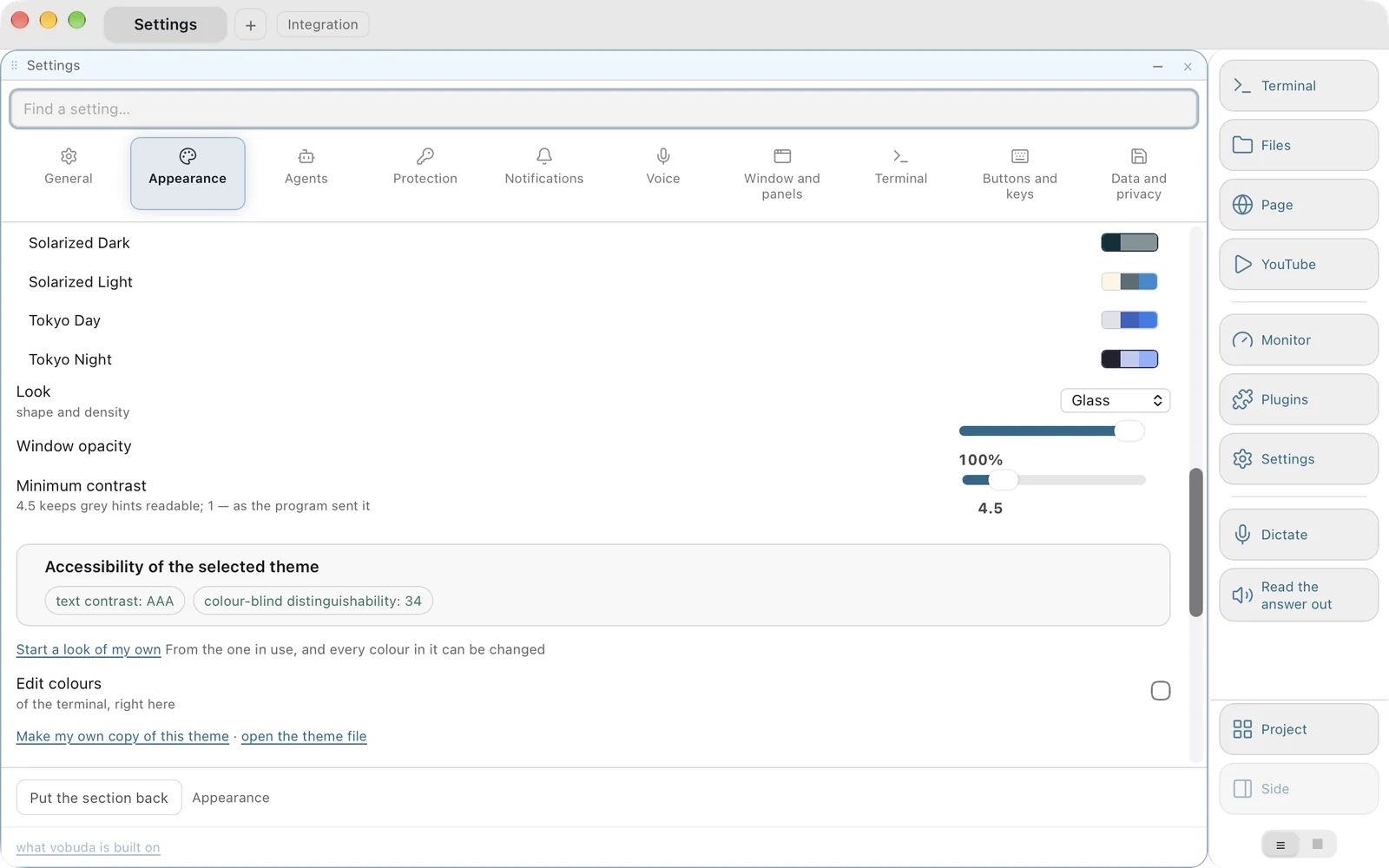
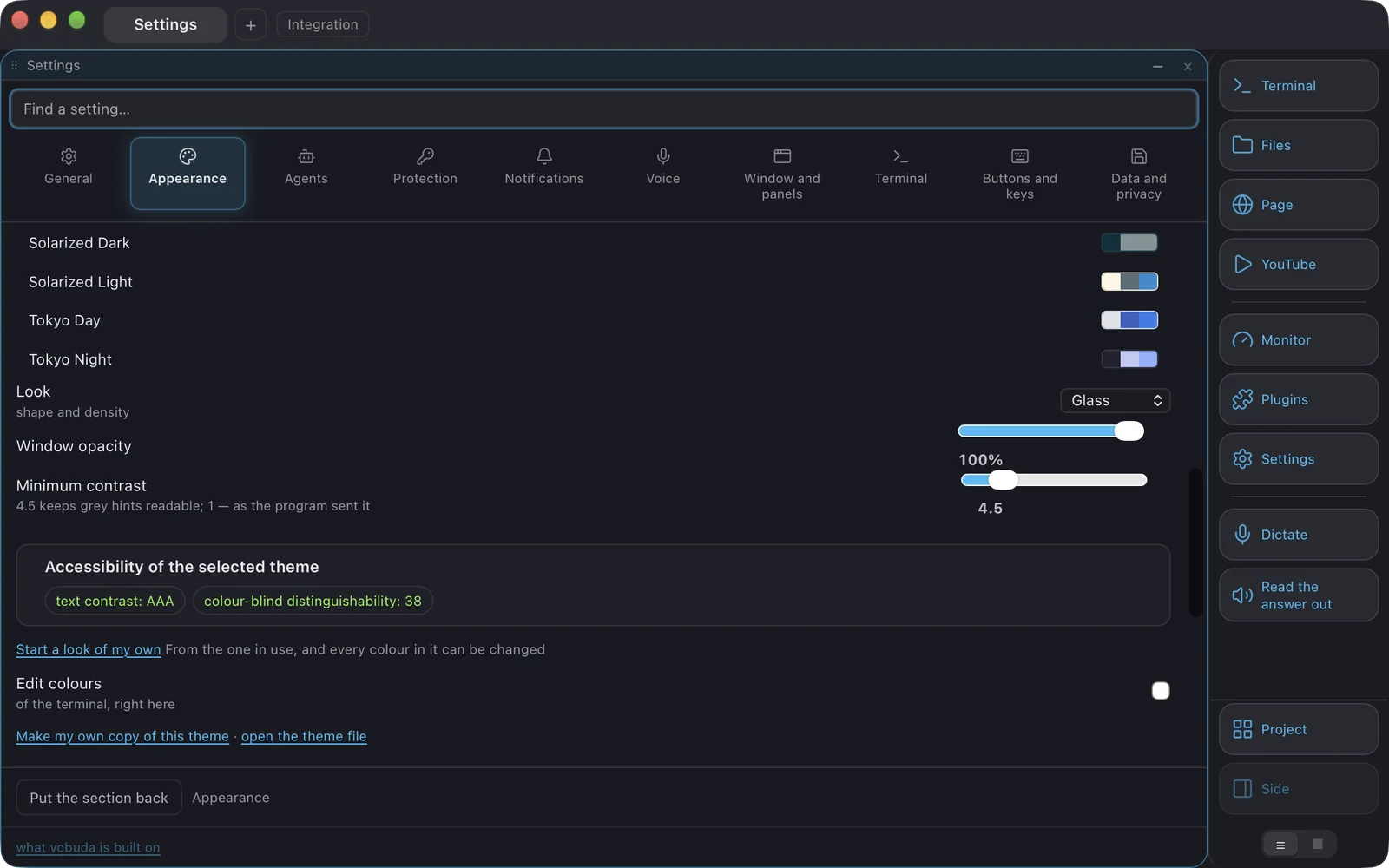
Ayarlar: həm ekran, həm fayl olaraq
«Ümumi»dən «Data və məxfilik»ə qədər on bölmə, hər ayar üzrə axtarış və onların hər biri əllə də redaktə edə biləcəyiniz fayldakı bir sətirdir.
-
Ayarlar bloka gəlir
Paneldə sağ klik «bu şeyi burada dəyiş» deməkdir. Ona görə blokun öz menyusunda ayarlar sətrini seçmək sizi ayarlar ekranına aparmaq əvəzinə həmin bölməni pəncərənin üzərində, menyunun küncündə açır. Bu, hər şey kimi əməldir: settings.here:themes, settings.here:monitor.
-
Seçdiyiniz anda eşidə biləcəyiniz səs
Siqnal səsini və ya terminalın zəngini seçmək onu çalır. Eşidə bilmədiyiniz adlar siyahısından səs seçmək sadəcə ad seçməkdir.
-
Heç nə yenidən başlatma tələb etmir
Ayarlar qovluğu izlənilir, o cümlədən nüvəyə məxsus olan iki şey: qısayollar faylınızdan qurulan macOS menyu paneli və açılan pəncərənin qlobal klaviatura qısayolu, iki qısayolun eyni anda cavab verməməsi üçün köhnəsi yenisi qeydə alınmadan əvvəl buraxılır. Bir yoxlama ayarlar ekranındakı hər ipucunu oxuyur və restart sözündə uğursuz olur.
Danışmaq və sizə oxunmaq
Hər ikisi sistemin öz nitq texnologiyasından, sizin maşınınızda istifadə edir. Səs heç vaxt kompüterdən kənara çıxmır.
Diktə
Cmd+Shift+V dediklərinizi işlədiyiniz blokda yazır, zolaqda isə hansı dildə dinlədiyi iki hərflə göstərilir. Diktə edilmiş ifadə yazılır, heç vaxt işə salınmır: tanıma səhv eşidə bilər, özü işə düşən səhv eşidilmiş əmr isə radio açıq olduğu üçün şeyləri silən proqramdır. Agentin yanında isə, ifadənin əmr yox, mesaj olduğu yerdə, o özü göndərilə bilər, bu da ifadə bitdiyi anda oxunan bir ayardır.
Cavabı yenidən oxumaq
Cmd+Shift+R agentin son cavabını səsli oxuyur, yenidən basmaq onu dayandırır. Oxunan ekran deyil, cavabdır. Əvvəldəki nöqtə işarəsi, vurğulanan sözün ətrafındakı ulduzlar, adın ətrafındakı tərs qoşa vergüllər, xətt çərçivəsi, fayl adı kifayət edərkən tam yol - bunlar getmir, içindəki sözlər isə qalır. Oxuma sözlərlə deyil, formalarla məhdudlaşır: aşağıdan agentin giriş sətri, yuxarıdan isə onun loqosu ilə, çünki agentin ətraf elementləri onun hər yeni versiyası ilə dəyişir.
Onu istifadədə saxlamağınızı həll edən kiçik şeylər
Sağ düymə bizimdir
Pəncərənin hər yerində: blokun daxilindəki öz menyusu, pəncərənin xaricindəki menyu, tab zolağı, dok paneli, plitələr arasındakı boşluq. Hər sətir bir əməliyyatdır, menyunun özünün də bir əməliyyatı var, block.menu, ona görə yalnız əllə çatıla bilən hərəkət heç nəyin yoxlaya bilmədiyi hərəkət deyil. Sistemin öz menyusunu saxlayan yeganə yer mətn sahəsidir, orada kəs, kopyala, yapışdır və lüğət təklif olunur.
İstənilən yerdən qovluq açmaq
vobuda://open?path=/some/path Finder əməliyyatından, skriptdən və ya başqa tətbiqdən həmin qovluqda bir tab açır. macOS-da sistem səviyyəsində standart terminal ayarı yoxdur, ona görə bu, yerinə yetirə bilməyəcəyi bir vəd əvəzinə həmin funksiyanın dürüst versiyasıdır.
Blok daxilində axtarış
Cmd+F. Sahə axtardığı bloka məxsusdur, onu bağlamaq görünüşü uyğunluğun olduğu yerdə qoyur.
Bloku özünüzlə aparın
Cmd+Shift+X blokun mətnini kopyalayır, onu terminalın özündən soruşur, bu da onun GPU renderi aktiv olanda, səhifədə seçiləcək mətn olmayanda işləməsini təmin edir. Blokun şəkli Cmd+K-dakı iki əməldir, «Block snapshot to clipboard» və «Block snapshot to a file».
Ev tapşırığına çevrilməyən yeniləmə yoxlamaları
Nüvə gündə bir dəfə, öz axınında yoxlayır, sizin gördüyünüz isə düzülüşün üzərində deyil, üstündə zolaqdır, çünki terminalı örtən bildirişi insanlar oxumadan bağlamağı öyrənir. Siz basmayınca heç nə quraşdırılmır: agent üçün yeniləmə onun çıxışı görünən aktiv bloka yazılan əmrdir, Mac-dəki Vobuda üçün isə düymə yeni versiyanı arxa planda quraşdırır, sonra heç nə işləmirsə, on saniyədən sonra özü baş verən yenidən başlatmanı təklif edir.
Qırx dil, hər birində bələdçi
Bura sistemin nüvədə qurduğu macOS menyu paneli də daxildir. Ərəb və İvrit dilləri terminalın özü istisna olmaqla bütün pəncərəni güzgü kimi əks etdirir, çünki güzgüləmə nəticəni və yolları oxunmaz edərdi. Tərcümə açarı ingilis mətn sətridir, ona görə tərcümə olunmamış sətir boşluğa və ya identifikatora deyil, oxunaqlı ingiliscəyə qayıdır.
İndi haqqında oxuduğunuz hissələri sınayın
İlk işə salmada iki qısa sualdan sonra bir terminal bloku ilə açılır və başqa heç nə ilə. Yuxarıdakı hər şey istədiyiniz zaman aktiv etdiyiniz şeydir.
curl -fsSL https://vobuda.com/install.sh | sh